How to Fix Your Windows Computer if It Won’t Communicate with Your TI-84

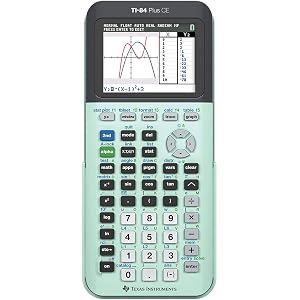
Recently, some models of Windows PC’s (Windows 11) have begun blocking Texas Instruments 84 calculators from successfully connecting to the computer to transfer files.
When you connect a calculator to the computer, your computer will either not register the calculator, or an error message will pop up that says something to the effect of “Driver has been blocked: tihdusb.sys does not pass the Windows driver policy.”
There are many fixes proposed on various how-to pages on the internet, but they don’t work.
So, if your TI-84 calculator is not connecting to Windows, try this.
This is the actual fix (it’s actually easy when you do it):
Hopefully, Texas Instruments will update its drivers so that its calculators can again connect to a PC.
P.S. Thanks to David Blobaum for help with debugging this issue!




© Copyright 2010-2026 Edison Prep. All rights reserved. *ACT is a registered trademark of ACT, Inc., SAT and AP are registered trademarks of the College Board, PSAT/NMSQT is a registered trademark of the College Board and National Merit Scholarship Corporation; and none were involved in the production of, or endorses, Edison Prep.

 From the SAT to the MCAT: How Your Study Strategy Needs to Change in Colleg...
 Scroll to top