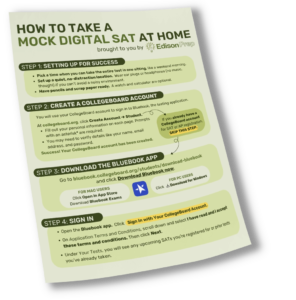
How to Take a Mock Digital SAT at Home
– Anytime, Anywhere –

– Anytime, Anywhere –
Follow these step-by-step instructions to take a mock digital SAT at home. Familiarize yourself with the test format, evaluate your current score, and kickstart your SAT prep plan. Once you’ve completed the test, share your scores with Edison Prep for personalized guidance and support.
You will use your College Board Account to sign in to Bluebook, the testing application
At collegeboard.org, click Create Account → Student.
If you already have a CollegeBoard account for SAT or AP registration, SKIP THIS STEP.

Go to bluebook.collegeboard.org/students/download-bluebook and click Download Bluebook Now.
FOR MAC USERS – Click Open in App Store, Download Bluebook Exams
FOR PC USERS – Click Download for Windows
PRO TIP:
Under Practice and Prepare, click Test Preview to gain familiarity with the Bluebook app before test day.
Don’t forget to email us at [email protected] with your Reading and Writing, Math and Total Scores!

You can review all completed Bluebook practice tests—with answer explanations—at mypractice.collegeboard.org/dashboard.
Please feel free to share!




© Copyright 2010-2026 Edison Prep. All rights reserved. *ACT is a registered trademark of ACT, Inc., SAT and AP are registered trademarks of the College Board, PSAT/NMSQT is a registered trademark of the College Board and National Merit Scholarship Corporation; and none were involved in the production of, or endorses, Edison Prep.
 Partners
 Scroll to top